Configure Your Backend Application
Configure a Backend Capsule in the Config tab.
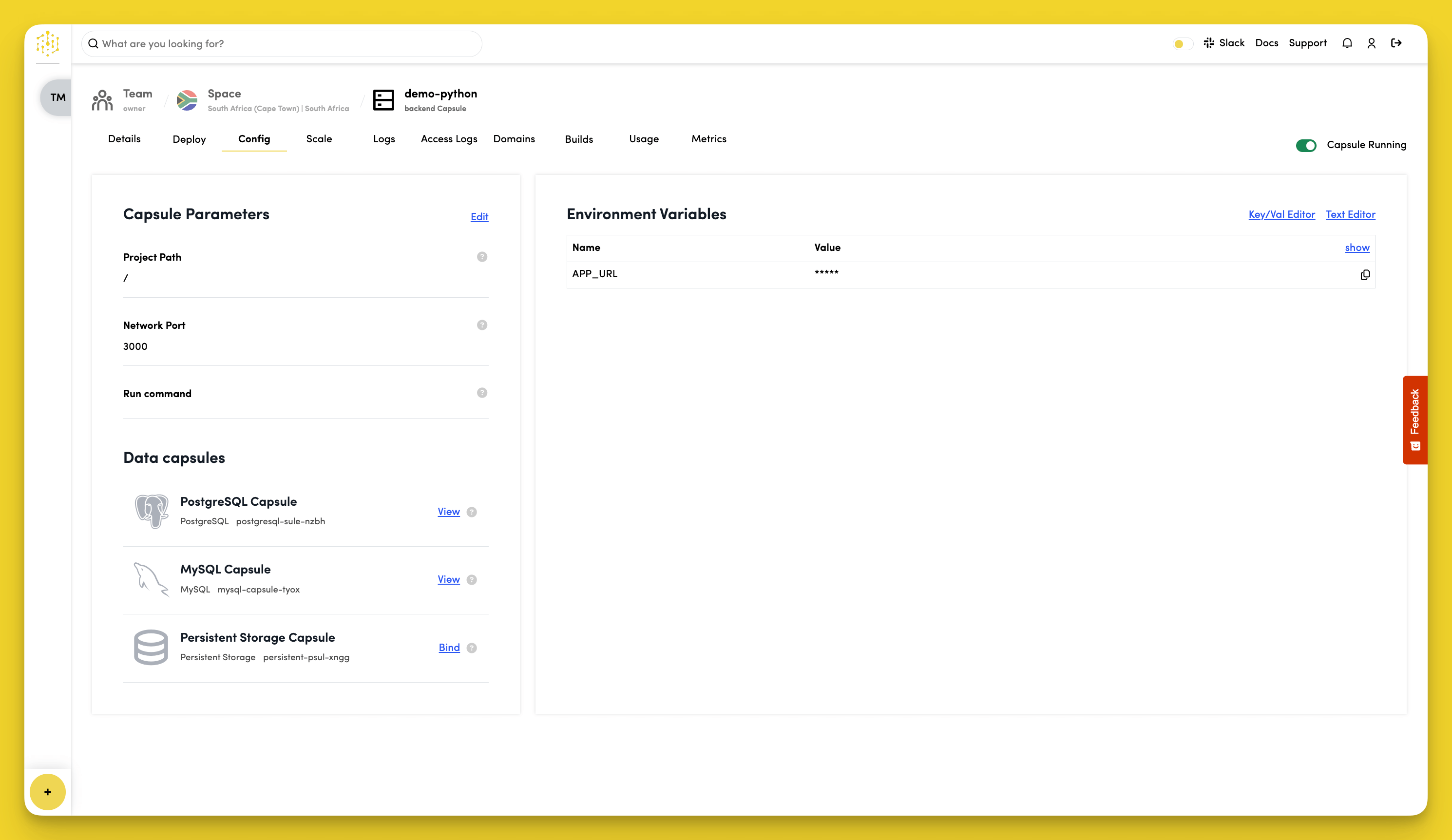
Set Capsule Parameters
Click Edit in the Capsule Parameters section to set the Capsule's project path, network port, and run command.
Project Path
The Project Path specifies the path to your code. The default is /, which works for most projects.
Network Port
The Network Port is the port your app runs on. Your app must be configured to listen on this port. The default is 3000.
Run Command
Use the Run Command field to specify how to start your app. Leave this field empty to use the default command for the Capsule type, or enter a custom command:
- Python:
python app.py - Node.js:
npm start - Ruby:
ruby app.rb
Set Environment Variables
Each Backend Capsule is automatically assigned an APP_URL environment variable that stores its public URL.
To view environment variable values, click show in the top-right corner of the table.
To add or edit custom variables:
- Click Key/Val Editor or Text Editor in the top-right corner.
- Enter or update the variable’s Name and Value.
- Click Save to apply your changes.
Connect Data Capsules
Connect a Database Capsule
In the Data capsules section, click the View button next to a Database Capsule to see its connection details.
Click + next to the Connection string variable to create a DATABASE_URL environment variable in your Backend Capsule. Your application will use this variable to connect to and use the services provided by the Database Capsule.
Connect a Persistent Storage Capsule
Click Bind next to the Persistent Storage Capsule to attach it to your Backend Capsule.
During the bind process, Code Capsules creates a PERSISTENT_STORAGE_DIR environment variable that tells your Backend Capsule where to access the Persistent Storage Capsule.